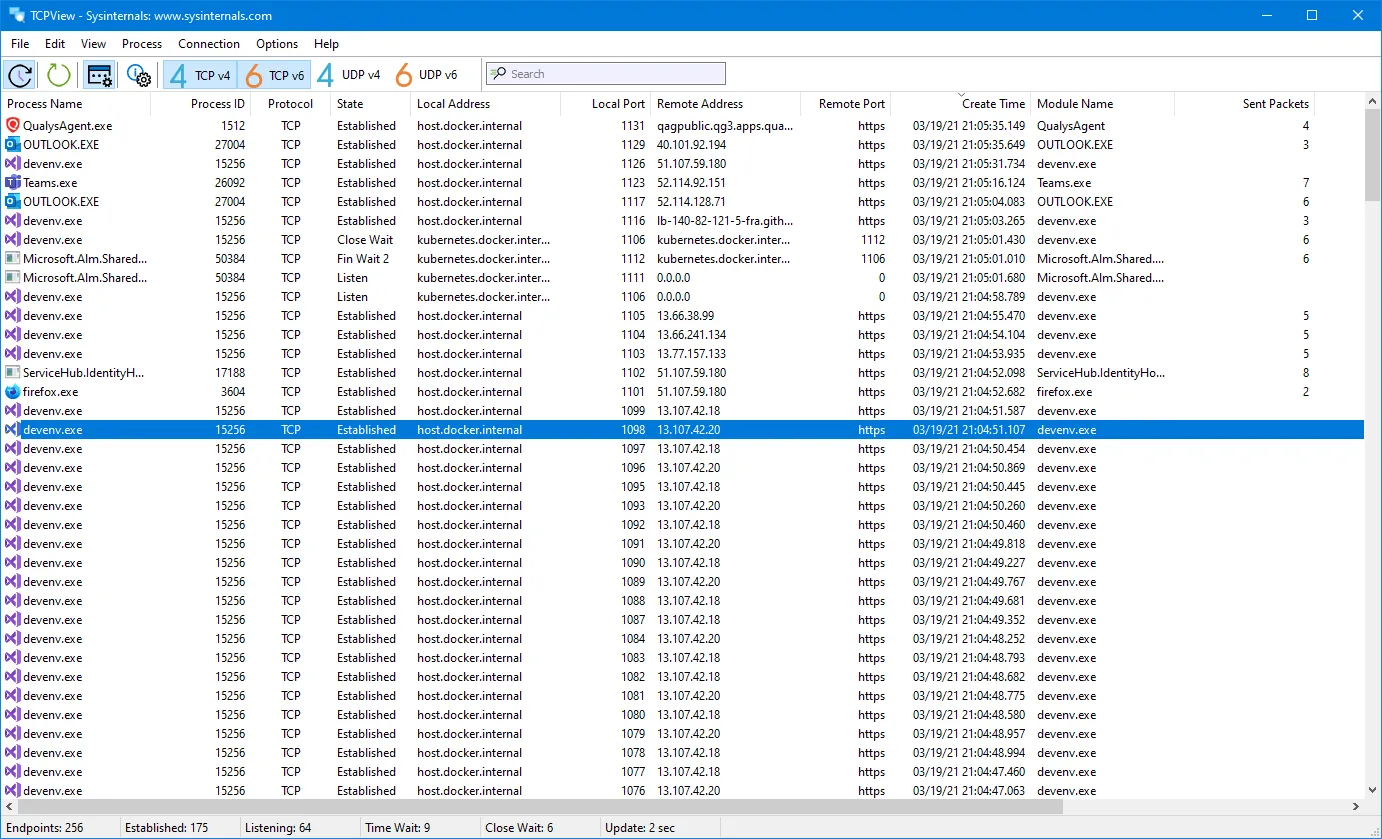
A service refuses to start because “the port is already in use.” Or a finance PC’s uplink is pegged and nobody knows by what. Or the firewall logs show a workstation opening hundreds of outbound connections to an address nobody recognizes. In each case the first question is the same: which process on this Windows machine owns that socket? TCPView answers it faster than any other tool on this site.
What TCPView does
TCPView is a Sysinternals utility written by Mark Russinovich and distributed by Microsoft. It enumerates every active TCP and UDP endpoint on the local system and shows, per row, the owning process name and PID, the protocol, local and remote address and port, the TCP state, and — where the process hosts one — the Windows service name. It is essentially a live, graphical, better-organised version of netstat -ano with process names resolved for you.
The display refreshes every second by default (adjustable under Options → Refresh Rate), and changes are color-coded: endpoints that change state flash yellow, new ones appear green, and closed ones show red before disappearing. That makes bursty behaviour — a process opening and dropping connections every few seconds — visible at a glance. You can toggle DNS resolution of remote addresses, close any ESTABLISHED TCP connection from the right-click menu, and save the current table to a text file.
The package includes Tcpvcon, a command-line version:
tcpvcon -a -c -n          # all endpoints, CSV, no name resolution
tcpvcon -a -n sqlservr    # endpoints for one process
tcpvcon -c 4812           # established connections for PID 4812
-a shows all endpoints including listeners (the default is established TCP only), -c prints CSV, and -n skips name lookups.
Microsoft’s page lists support for Windows 8.1 and later on clients and Windows Server 2012 and later on servers, and the page was last published in April 2023. The tool is a small archive, around 1.5 MB, and it needs no installation step; you extract it and launch.
Where it’s strong: the shortest path from symptom to process
Time-to-evidence is measured in seconds. Launch it, sort by local port, find :8080 LISTENING, read the process name — done. For the “port already in use” class of problem, there is nothing quicker, and our guide on finding which Windows process owns a port shows the full sequence alongside the PowerShell equivalents.
- Service awareness. Seeing
svchost.exeis useless on its own; TCPView names the service inside it. - Live change highlighting exposes connection churn that a single
netstatsnapshot misses. - Close Connections lets you test a hypothesis (“does the app recover if this session drops?”) without killing the process.
- Tcpvcon CSV output is easy to collect across machines with a remote shell and compare in a spreadsheet.
- Nothing to install. It runs straight from the extracted folder or from the
live.sysinternals.comshare, which suits locked-down servers.
Where it falls short, and who should skip it
TCPView is strictly local and Windows-only. It shows the sockets on the machine it runs on — nothing about the path, nothing about other hosts. It won’t tell you why a connection is slow; there is no packet content, no retransmission counting, no latency. For that, capture with Wireshark or trace the path with PingPlotter.
It gives you no history. If the offending connection lasted two seconds at 03:00, TCPView will never show it; you need Sysmon network-connection events, firewall logging or an ETW trace for after-the-fact questions.
Linux and macOS admins should skip it — ss -tunap and lsof -i fill the same role there. And although Close Connections is useful, forcibly closing sessions on a production server can break clients in ways that are hard to explain later; use it deliberately.
Some fields need elevation. Running without administrator rights can leave process names blank for endpoints owned by other users or protected services, so on servers run it elevated.
Who it suits
- Windows sysadmins and help desk staff troubleshooting port conflicts, unexpected listeners or chatty applications.
- Security-minded admins doing a quick check of what a workstation is talking to, before deciding whether a deeper capture is justified.
- Anyone scripting connection inventories across a Windows fleet with Tcpvcon.
Licensing and cost
TCPView is freeware from Microsoft under the Sysinternals licence terms. There is no paid version and no activation. The Sysinternals licence permits use on your own systems; check the licence text before redistributing it inside a product or toolkit.
How it compares
Its natural partner is Wireshark: TCPView answers “who owns this connection?”, Wireshark answers “what is happening inside it?” — the trade-off is spelled out in Wireshark vs TCPView. For discovering which hosts on a subnet respond at all, Angry IP Scanner and LizardSystems Network Scanner work at the network level rather than the process level. Both categories — throughput and packet inspection and host and connection checks — list TCPView.
Getting it safely
Obtain TCPView from Microsoft’s Sysinternals pages on learn.microsoft.com, or run it directly from https://live.sysinternals.com. The executables are Authenticode-signed by Microsoft; confirm the signature under file Properties → Digital Signatures, or with Get-AuthenticodeSignature .\tcpview64.exe in PowerShell, before first use. The Sysinternals Suite is also available through the Microsoft Store and winget. Third-party mirrors add nothing but risk for a Microsoft-signed utility; our where to get it page explains the checks, and methodology covers how this review was researched.
FAQ
Is TCPView better than netstat -ano?
It shows the same underlying data, but with process and service names resolved, live updates and change highlighting. For a one-off check in a script, Get-NetTCPConnection with OwningProcess is a fine alternative.
Why are some process names missing?
Without administrator rights, Windows hides details of processes owned by other accounts or protected services. Run TCPView elevated.
Can it close UDP endpoints?
No. Close Connections applies to established TCP connections only. To free a UDP port, stop the owning process or service.
Does it work on Windows 11 and Server 2022?
Microsoft lists Windows 8.1 and later and Windows Server 2012 and later, which covers current releases.